Payment reminders that do the chasing for you
BooksBat sends polite reminder emails before the due date, on the day and after it, with a link to view and pay. Set the schedule once for your business, change it for any invoice, and reminders stop as soon as you are paid.
- Included in Pro, $4 a month
- Stops when paid
- Per business or per invoice
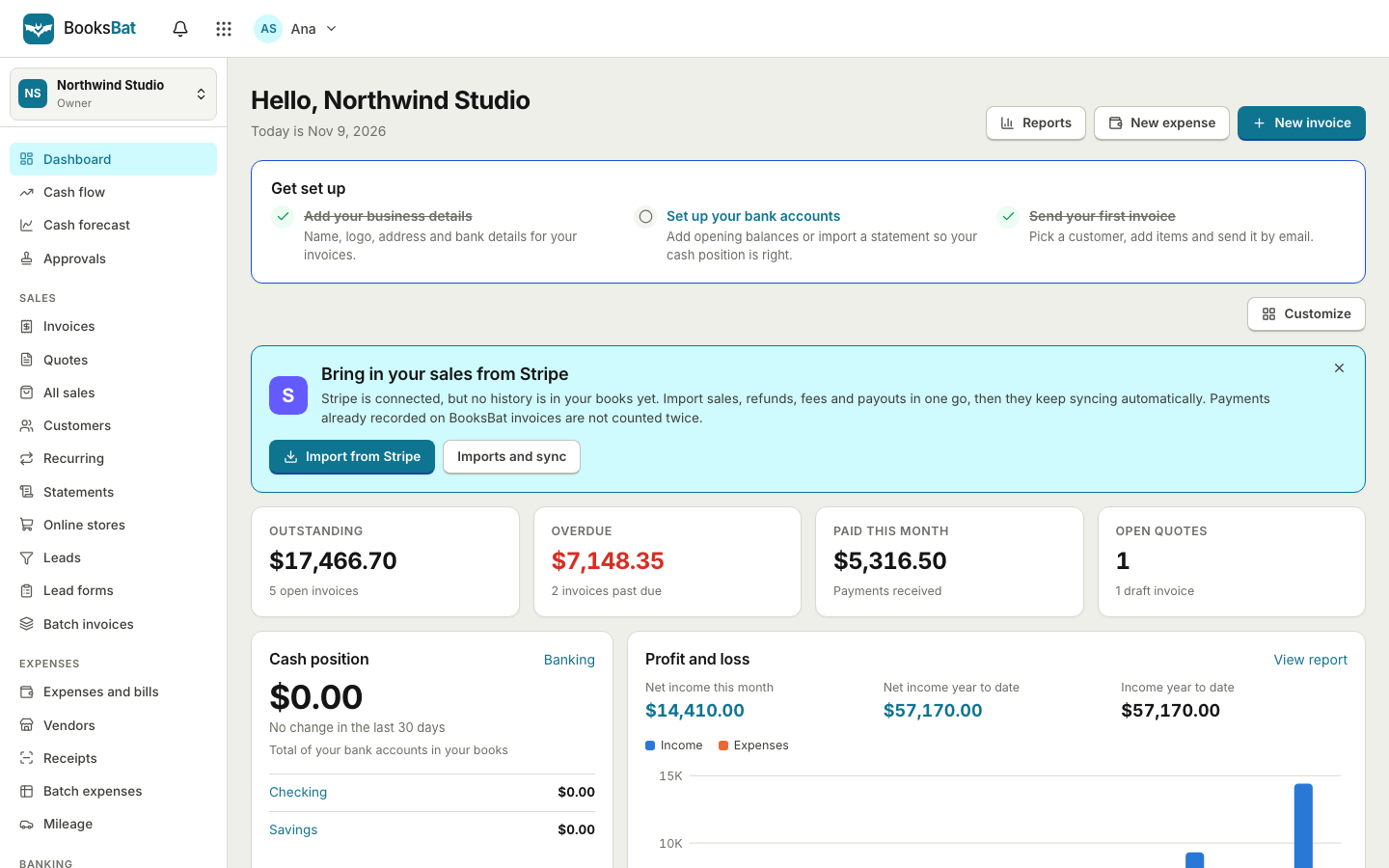
Nobody likes chasing payments
Most late payments are not bad intent. The invoice got buried in an inbox, the client meant to pay at the weekend, or the person who approves payments was away. A short, friendly reminder at the right moment usually fixes it. The hard part is remembering to send one, and finding the right words when it feels awkward.
BooksBat sends those reminders for you. Pick when they go out, for example 3 days before the due date, on the due date and 7 days after, and BooksBat emails your client at each step with a link to the invoice page where they can download the PDF and pay online. The moment the invoice is paid, the remaining reminders are cancelled.
Why turn on automatic reminders
Right on time
Reminders go out before the due date, on the day and after it, on the schedule you choose.
Stops when paid
Once an invoice is paid, by card or a payment you record, no more reminders are sent.
Your rules
Set a default schedule for your business and change or turn off reminders on any single invoice.
Polite and clear
Each reminder includes the amount due, the due date and a link to view and pay the invoice.
Saves you time
No more checking a spreadsheet of who owes what. The dashboard shows what is outstanding and overdue.
How reminders work
- 1
Set your schedule
In Settings, choose when reminders go out, such as 3 days before, on the due date and 7 days after.
- 2
Send invoices as usual
Every invoice with a due date follows your schedule. Change or switch off reminders on any invoice when needed.
- 3
Get paid
Your client pays from the reminder link. The invoice shows as paid and the remaining reminders stop.
What you can set
- Before the due date
- A gentle heads up a few days before payment is due, for example 3 days before.
- On the due date
- A short note on the day the invoice is due.
- After the due date
- Follow ups after the due date, for example 7 days after, for invoices that are overdue.
- Business defaults
- One reminder schedule for your whole business, used by every new invoice.
- Per invoice control
- Change the schedule or turn off reminders for a single invoice or client.
- Automatic stop
- Reminders stop as soon as the invoice is paid in full or voided.
- Pay link in every email
- Each reminder links to the public invoice page with the PDF and, with a payment provider connected, a Pay button.
- Timeline entries
- Every reminder sent is recorded on the invoice timeline, so you know exactly what your client received.
- Custom email templates
- On Pro, edit the wording of your invoice and reminder emails to match how you talk to clients.
A sensible reminder schedule
There is no perfect schedule, but this works well for most small businesses:
- 3 days before the due date: a friendly heads up with the amount and the pay link.
- On the due date: a short note that payment is due today.
- 7 days after the due date: a polite follow up that the invoice is now overdue.
If an invoice is still unpaid after that, it is usually time for a personal email or call. The invoice timeline shows when it was sent, viewed and reminded, which makes that conversation easier.
Reminders work best with online payments
A reminder is most useful when paying takes one tap. Connect your own Stripe, PayPal, Square or other provider account and every reminder links to a page where your client can pay online. The money goes straight to your own account, the payment posts to your books, and the reminders stop on their own. Learn more about online payments.
For regular clients, pair reminders with recurring invoices, and keep an eye on the aging report to see which invoices are overdue and by how long.
Frequently asked questions
Which plan includes automatic reminders?
Automatic payment reminders are part of Pro, which costs $4 a month. Pro also includes recurring invoices, custom email templates, unlimited customers, invoices and quotes, bank reconciliation, sales tax and no BooksBat branding. Business, at $12 a month, includes everything in Pro.
When are reminders sent?
On the schedule you choose: before the due date, on the due date and after it. For example 3 days before, on the day and 7 days after.
Do reminders stop when the client pays?
Yes. As soon as the invoice is paid, whether online or with a payment you record, the remaining reminders are cancelled.
Can I turn off reminders for one client or invoice?
Yes. Reminders are set per business with a default schedule, and you can change or switch them off on any invoice.
What does a reminder email contain?
The invoice number, the amount due, the due date and a link to the public invoice page where your client can download the PDF and pay.
Can I see which reminders were sent?
Yes. Every reminder is recorded in the invoice's timeline.
Can I send a customer a statement instead?
Yes. On Pro you can send customer statements that list every open invoice, payment and the balance due, which suits customers with several invoices at once.
Related features
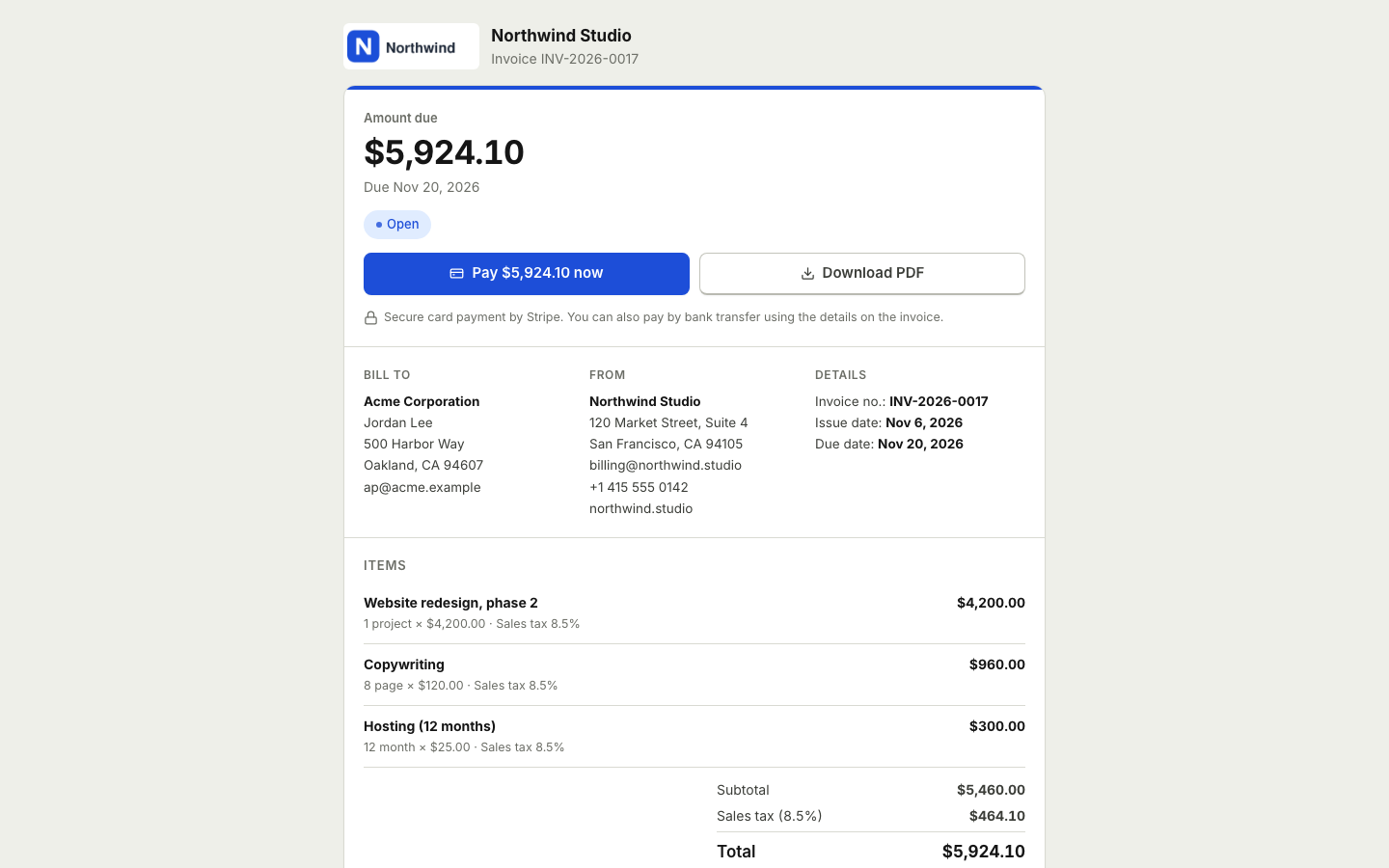 Online paymentsConnect your own Stripe, PayPal, Square, Razorpay, Mollie, GoCardless or Lemon Squeezy account. Clients pay online and the payment posts to your books.
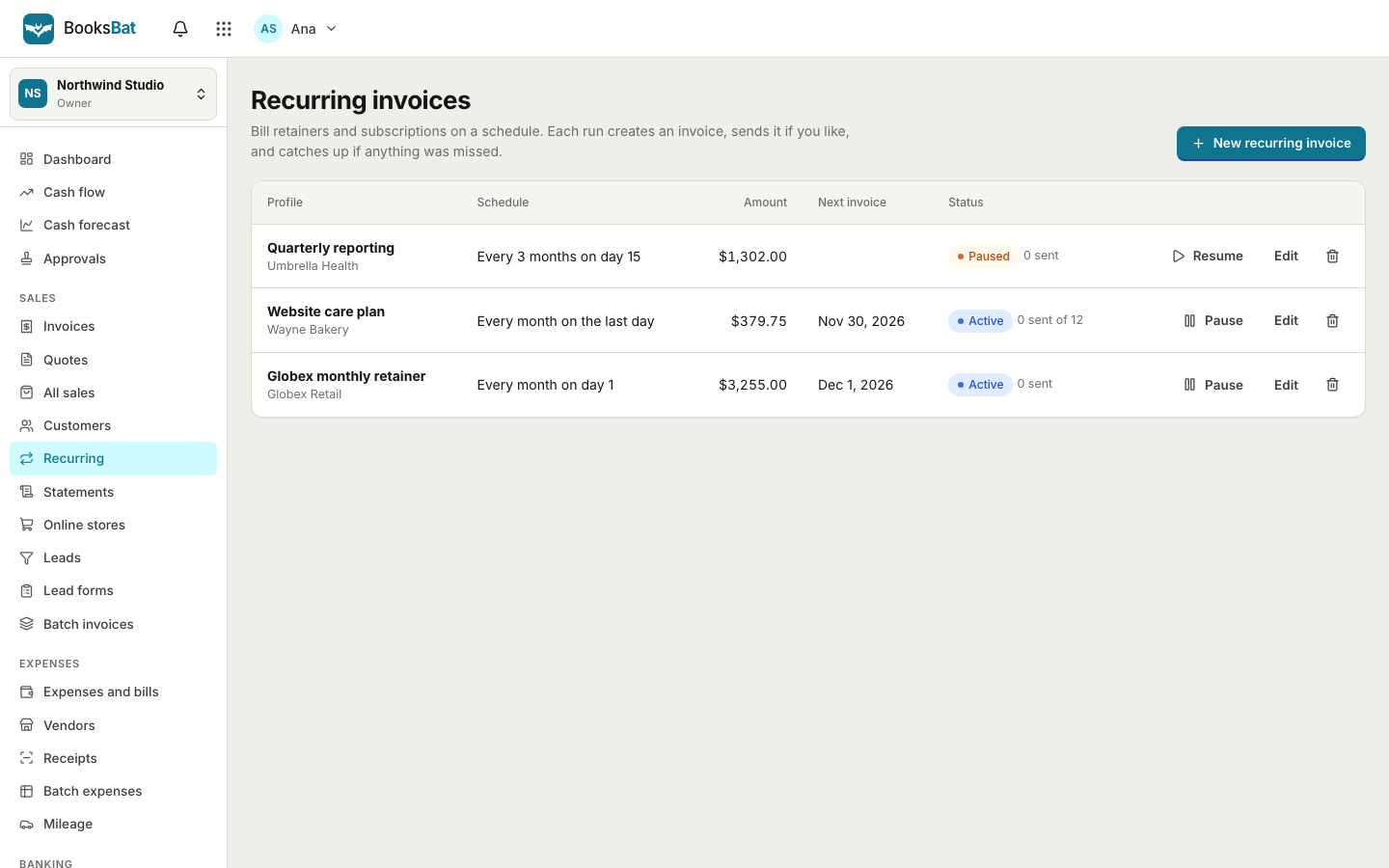 Recurring invoicesBill retainers and regular work on a schedule: weekly, every 2 weeks, monthly, quarterly or yearly, sent automatically or saved as drafts.
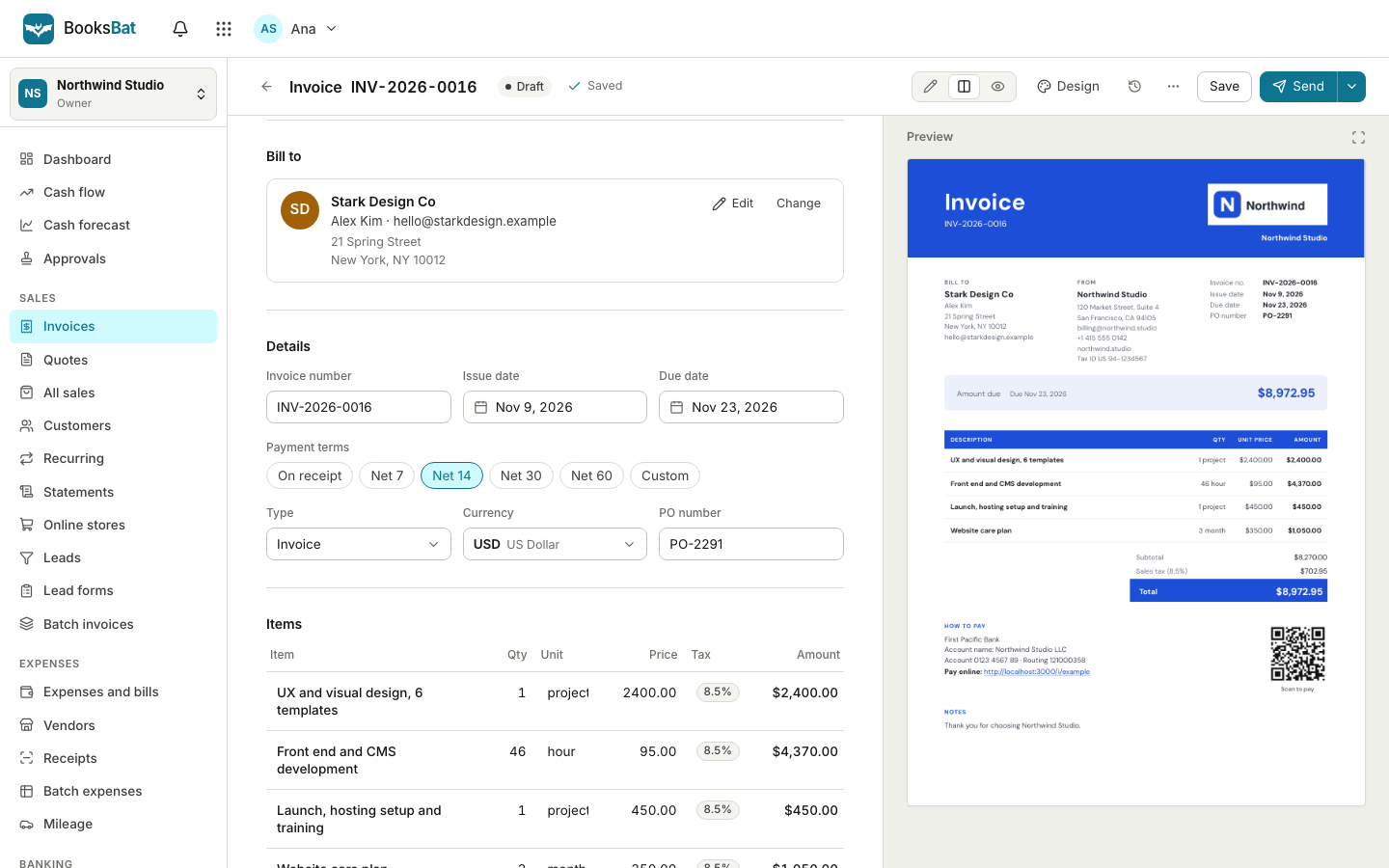 Online invoicingCreate professional invoices in minutes, email them with the PDF attached and let clients view and pay on a mobile friendly page.
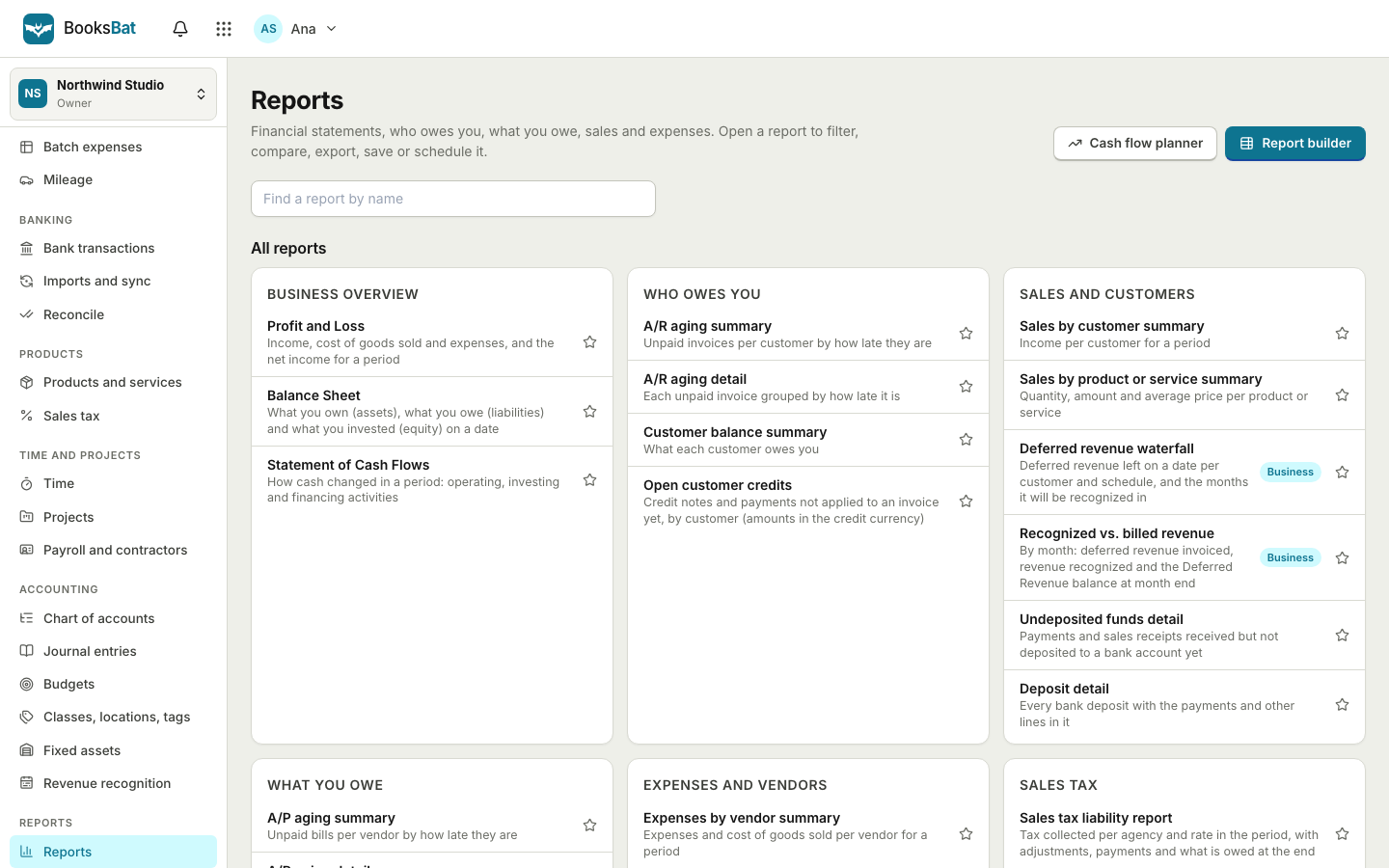 Dashboard and sales reportsSee what is outstanding, overdue and paid at a glance, with AR aging, sales by customer and tax reports built from your invoices.Invoicing for freelancersSend clean invoices and quotes, get paid online through your own payment account, let reminders do the chasing and keep your books in the same place.
Let reminders do the chasing
Create a free account, then upgrade to Pro for $4 a month to turn on automatic reminders and recurring invoices.