Get paid online, straight to your own payment account
Connect the payment provider you already use and every invoice gets a Pay button. Clients pay on the provider's checkout, the money goes to your own account, and BooksBat marks the invoice paid and records the payment and the fee in your books.
- Stripe included on the free plan
- No extra BooksBat fee by default
- Payments and fees post to your books
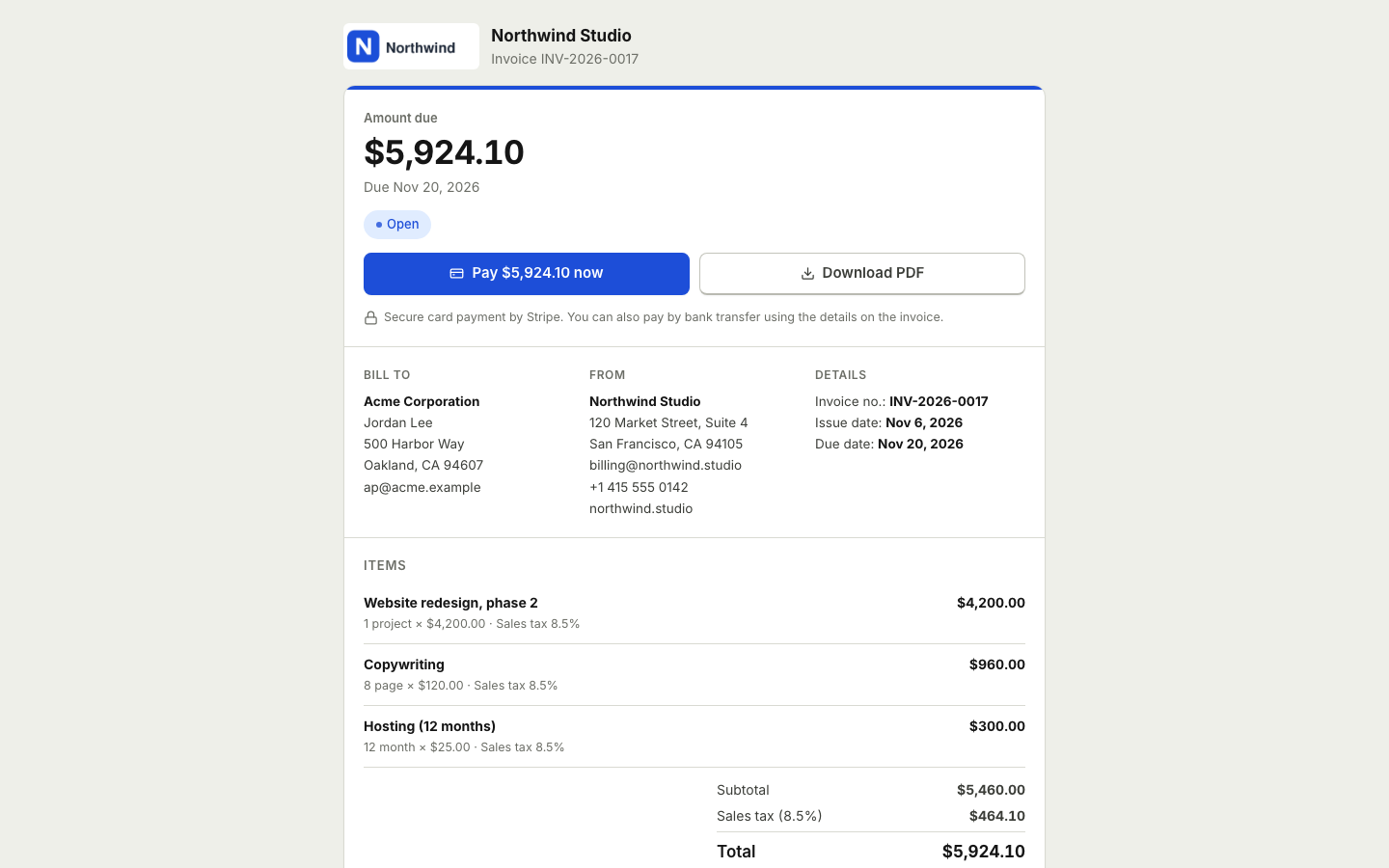
Make paying you the easiest part of their day
The quickest way to get paid is to make paying easy. When an invoice arrives with only bank details, your client has to open their banking app, copy a long account number, type a reference and hope nothing is wrong. Many put it off until later, and later becomes overdue.
With BooksBat online payments, the invoice email links to a mobile friendly page with a Pay button. Your client taps it, pays on your provider's secure checkout and is done. The money lands in your own provider account, the invoice updates to paid, any payment reminders stop, and the payment and the provider's fee are recorded in your books without you typing anything.
Why take payments through BooksBat
Your money, your account
Each business connects its own provider account. Payments go to that account, never through a BooksBat account.
No extra fee by default
Your provider's normal processing fees apply. BooksBat adds no fee on top by default.
Several providers
Stripe, PayPal, Square, Razorpay, Mollie, GoCardless and Lemon Squeezy, so you can use the one that fits your country and your clients.
Secure checkout
Clients pay on the provider's own hosted checkout. Card and bank details never touch BooksBat.
Booked for you
Each payment clears the invoice in accounts receivable, the fee posts as a bank charge, and the payout lands in your bank account.
Bank transfer as a fallback
Without a provider connected, the invoice shows your bank transfer details instead, so clients always know how to pay.
Set up online payments in 3 steps
- 1
Connect a provider
Go to Settings > Payments. Connect Stripe in a few clicks, or paste the API keys from your PayPal, Square, Razorpay, Mollie, GoCardless or Lemon Squeezy dashboard and follow the webhook steps shown.
- 2
Send an invoice
Every invoice you send now has a Pay button on its public page, next to the PDF download.
- 3
Get paid
Your client pays online. The money goes to your provider account, the invoice shows as paid, and the payment and fee appear in your books.
How payments work
- Stripe
- Stripe Connect with a Standard account and Stripe Checkout. Cards, wallets and the local methods you enable in Stripe. Included on every plan, including Free.
- PayPal
- PayPal checkout for clients who prefer to pay with their PayPal balance or card, with Venmo where PayPal offers it.
- Square
- Square payment links for cards and wallets, handy if you already take Square payments in person.
- Razorpay
- Cards, UPI, net banking and wallets for businesses billing clients in India.
- Mollie
- Cards, iDEAL, SEPA and other European payment methods through your own Mollie account.
- GoCardless
- Bank debit and open banking payments, a low cost option for larger invoices and regular clients.
- Lemon Squeezy
- A merchant of record checkout that suits software and digital product sellers. Check with Lemon Squeezy that your business is eligible.
- Automatic bookkeeping
- Each provider gets its own clearing account. Payments, fees and payouts post there, so reconciling your bank statement is quick.
- Partial and manual payments
- Record part payments, bank transfers, cash and checks yourself. The public page always asks for the remaining balance due.
- Refunds
- Refunds made through a connected provider are recorded against the invoice and in your books.
What it costs
Each provider charges its own processing fees, which depend on your country, the payment method and your agreement with them. You see them in the provider's dashboard, and BooksBat records each fee in your books as a bank charge. BooksBat adds no extra fee on payments by default.
Online payments with Stripe are part of the free plan, along with 5 customers, 5 invoices and 5 quotes a month and basic bookkeeping. Pro is $4 a month and adds the other payment providers, unlimited customers, invoices and quotes, no BooksBat branding, recurring invoices, automatic reminders and bank reconciliation. Business is $12 a month for larger teams, inventory, projects and payroll. See pricing for details.
Why your own account matters
Some invoicing tools collect payments into their own account and pay you later. BooksBat does not. Every business connects its own account with the provider, so the payment is made to you directly. You see it in your provider's dashboard, you control your payout schedule, and your relationship is with the provider.
Your API keys and webhook secrets are stored encrypted. If you ever stop using BooksBat, your provider account and its full history stay with you.
Payments that keep your books straight
Because BooksBat is a full accounting app, a payment is more than a paid badge. When a client pays an invoice online, BooksBat moves the amount out of accounts receivable into a clearing account for that provider, such as Stripe Clearing or PayPal Clearing, and posts the provider fee to bank charges. When the provider pays out to your bank, the payout moves from the clearing account to your bank account.
Then, when you import your bank statement, the payout matches in a click and your books reconcile. Your profit and loss shows the full sale as income and the fees as an expense, which is what your accountant expects. See bookkeeping and financial reports.
Getting paid faster
- Send invoices as soon as the work is done, while it is fresh in your client's mind.
- Turn on payment reminders so clients get a friendly nudge before and after the due date.
- Use recurring invoices for retainers, so regular bills go out on time without you.
- Offer bank debit through GoCardless for large or regular invoices, where card fees add up.
- Keep payment terms short and clear, and show them on every invoice.
Frequently asked questions
Which payment providers can I use?
Stripe, PayPal, Square, Razorpay, Mollie, GoCardless and Lemon Squeezy. Stripe is on every plan, including Free, and the other providers are part of Pro and Business. The payment methods your clients see depend on what the provider offers in your country and what you have turned on.
Does BooksBat take a fee on payments?
Not by default. Your provider's normal processing fees apply, and BooksBat adds no extra fee on top.
Where does the money go?
Straight to your own provider account. Each business connects its own account, so payments never sit in a BooksBat account.
Do payments show up in my books?
Yes. Each online payment is recorded against the invoice, the provider fee posts as a bank charge, and the payout to your bank is tracked through a clearing account for that provider, ready to reconcile.
What happens when a client pays?
The invoice is marked paid, the payment is added to its timeline, any scheduled reminders stop, and the payment is posted to your books.
Can I still record bank transfers and cash?
Yes. Record manual payments by bank transfer, cash or check, including partial payments, next to online payments.
Do my clients need an account?
No. They open the invoice link from your email and pay on the provider's checkout page.
Related features
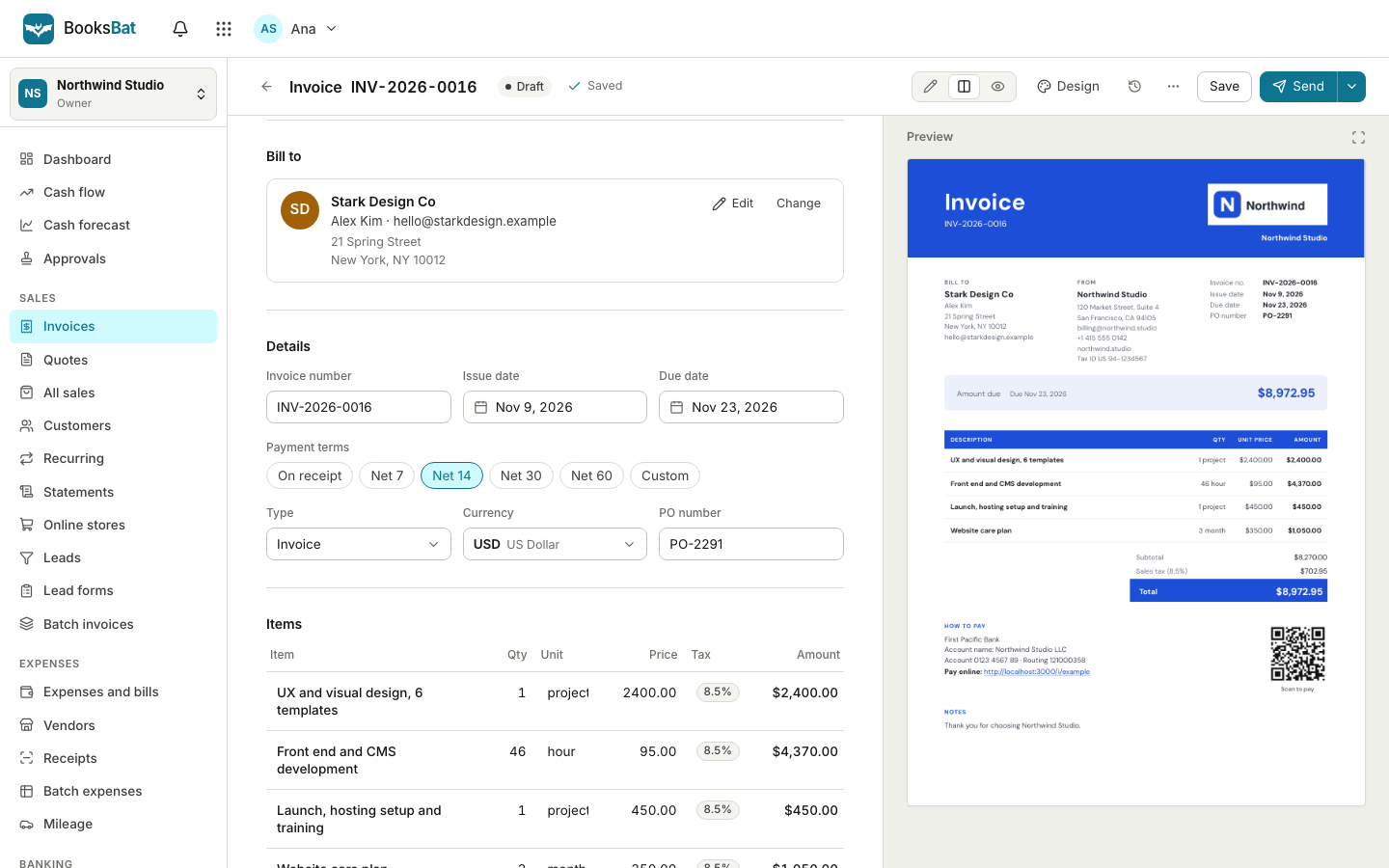 Online invoicingCreate professional invoices in minutes, email them with the PDF attached and let clients view and pay on a mobile friendly page.
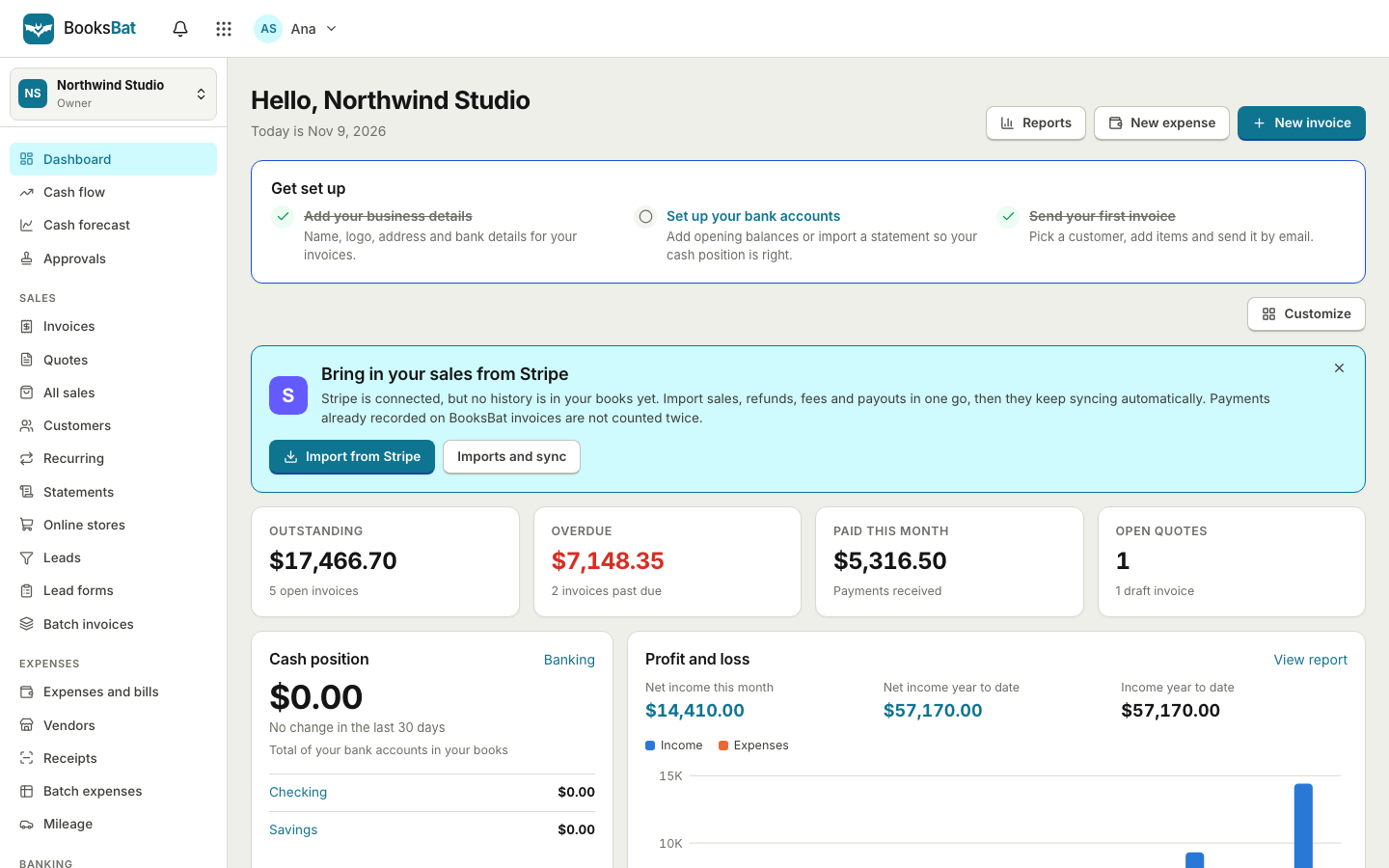 Bank reconciliationImport bank statements as CSV, OFX, QFX or QBO, categorize or match each line with bank rules, then reconcile to the statement.BookkeepingDouble entry bookkeeping with a chart of accounts, journal entries and a ledger that fills itself from your invoices, payments and bills.Payment remindersAutomatic, polite reminder emails before, on and after the due date. They stop as soon as the invoice is paid.
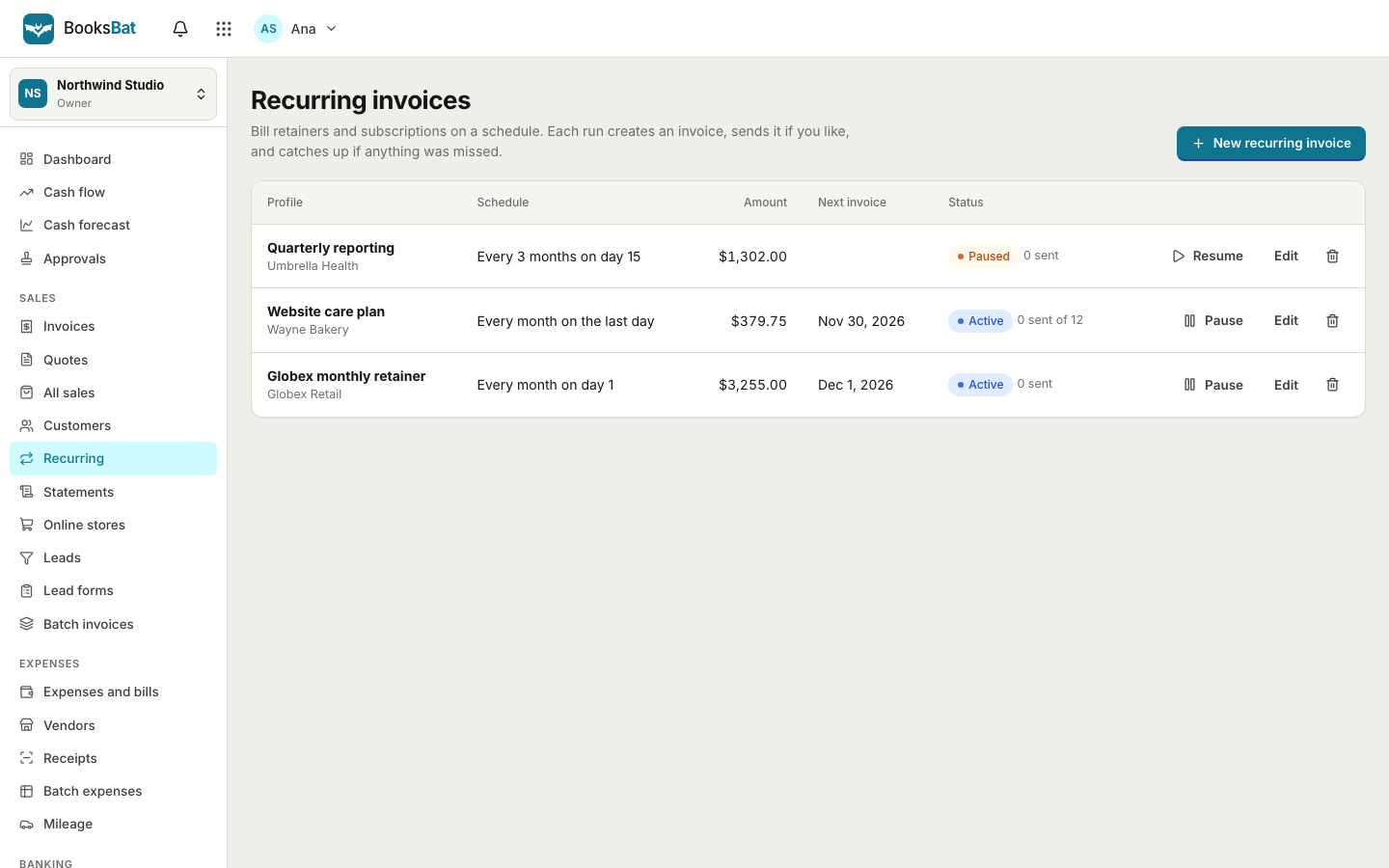 Recurring invoicesBill retainers and regular work on a schedule: weekly, every 2 weeks, monthly, quarterly or yearly, sent automatically or saved as drafts.Multi currencyInvoice customers and pay suppliers in their currency while your books stay in your home currency, with exchange gains and losses recorded.
Add a Pay button to your invoices
Create a free account, connect Stripe in Settings > Payments and send your first payable invoice today. Upgrade to Pro for PayPal, Square and the other providers.