Track your time, bill every hour and see which jobs pay
Start a timer or fill in a timesheet, mark the hours billable and pull them straight onto the customer's invoice. Group work into projects and BooksBat shows the income, costs and profit of each one, so you know which jobs are worth taking again.
- Timer and weekly timesheets
- Billable hours to invoices
- Profit by project
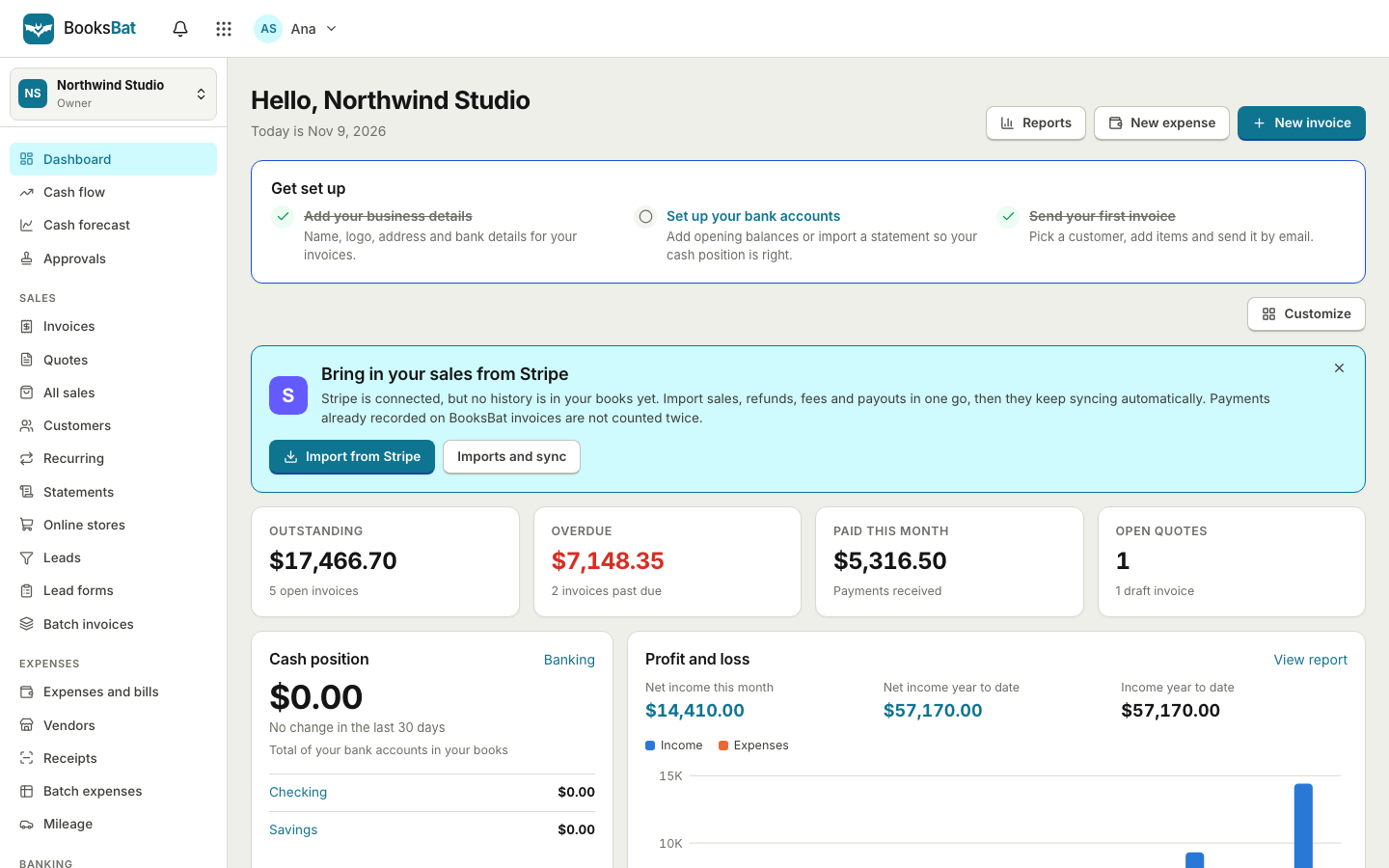
Your time is what you sell, so count all of it
If you bill by the hour, every unrecorded fifteen minutes is money you will never see. If you quote fixed prices, you still need to know how many hours a job really took, or you will keep underpricing the same kind of work. BooksBat makes recording time quick enough that you will actually do it.
Hours you track are tied to a customer and, if you like, a project and a service. Billable hours wait until you invoice that customer, then appear as lines you can add in one click. Projects bring the whole job together: the invoices you sent, the expenses and bills you recorded against it, and the cost of the time spent, so you see real profit, not just revenue.
Why teams track time and projects in BooksBat
A timer that is always there
Start a timer when you begin a task and stop it when you are done. It keeps running if you close the tab.
Weekly timesheets
Prefer to log time at the end of the day or week? Fill in hours per customer and service on a weekly grid.
Hours become invoice lines
When you invoice a customer, BooksBat lists their unbilled hours so you can add them with the right rate.
Projects that hold the whole job
Link invoices, expenses, bills and time to a project to keep everything about one job in one place.
Profit per project
See income, costs and profit for every project, and spot the jobs that eat your margin.
Budgets to stay on track
Set a budget and compare it with actual results on the budget vs actuals report.
Bill your time in 3 steps
- 1
Set up a project
Create a project on projects for a customer, or simply track time against the customer if you do not need projects.
- 2
Track your time
Use the timer or the weekly timesheet on time, choose the service and mark the entry billable.
- 3
Invoice and review
Add the unbilled hours to the customer's next invoice, then check the project profitability report to see how the job went.
What time tracking and projects include
- Timer
- One click start and stop, with a description, customer, project and service.
- Weekly timesheets
- Enter hours for a whole week on one screen, ideal for logging time after the fact.
- Billable and non billable time
- Mark each entry as billable or not, so internal work is tracked without being invoiced.
- Billable hours on invoices
- Unbilled hours appear when you invoice the customer and are marked billed once added.
- Team time
- Team members log their own hours, and the time tracking only role lets someone record time without seeing your books.
- Projects
- A project per job or customer, with status, notes and every linked transaction.
- Project income and costs
- Invoices, expenses, bills and time all roll up to the project.
- Project profitability report
- Income, costs and profit for each project over any period.
- Budgets
- Plan income and expenses by account and month, then compare with actual results.
- Billable expenses
- Costs you incur for a customer can be passed on with a markup. See expenses and bills.
Made for service businesses
Consultants, agencies, designers, developers, bookkeepers and trades all sell time in one way or another. BooksBat keeps the hours next to the invoices and the books, so you are not copying numbers between a time tracker, a spreadsheet and an invoicing app.
If you run a small team, give each person a login with the time tracking only role. They can record their own hours and nothing else. You review the time and bill it. See team and accountant access.
Where the numbers show up
Time and projects feed straight into the rest of BooksBat:
- Invoices pick up billable hours at the rate of the service you chose. See online invoicing.
- Recurring work on a monthly retainer can still be billed with recurring invoices, while time shows how much the retainer really costs you.
- Reports include project profitability and budget vs actuals alongside your profit and loss. See financial reports.
Which plan includes time and projects?
Time tracking, projects, project profitability and budgets are on the Business plan at $12 a month, which also allows up to 25 users. Free and Pro include invoices and expenses, but not timesheets or projects. Compare plans on the pricing page.
Frequently asked questions
Which plan do I need for time tracking?
The Business plan. Time tracking, projects and budgets are not on Free or Pro. See pricing.
Can I add tracked hours to an invoice?
Yes. When you create an invoice for a customer, their unbilled billable hours are listed so you can add them as lines. Once billed, they are not offered again.
Can my staff track time without seeing my finances?
Yes. Invite them with the time tracking only role. They can record their own time but cannot see invoices, banking or reports.
How is project profit calculated?
BooksBat adds up the income from invoices linked to the project and subtracts the costs linked to it, such as expenses, bills and time, for the period you choose.
Does time tracking work on a phone?
Yes. BooksBat works in any phone browser and can be installed as an app, so you can start and stop the timer on the go.
Can I track time that I do not bill?
Yes. Mark the entry as non billable. It still counts toward the project, so you see the true cost of the job.
Related features
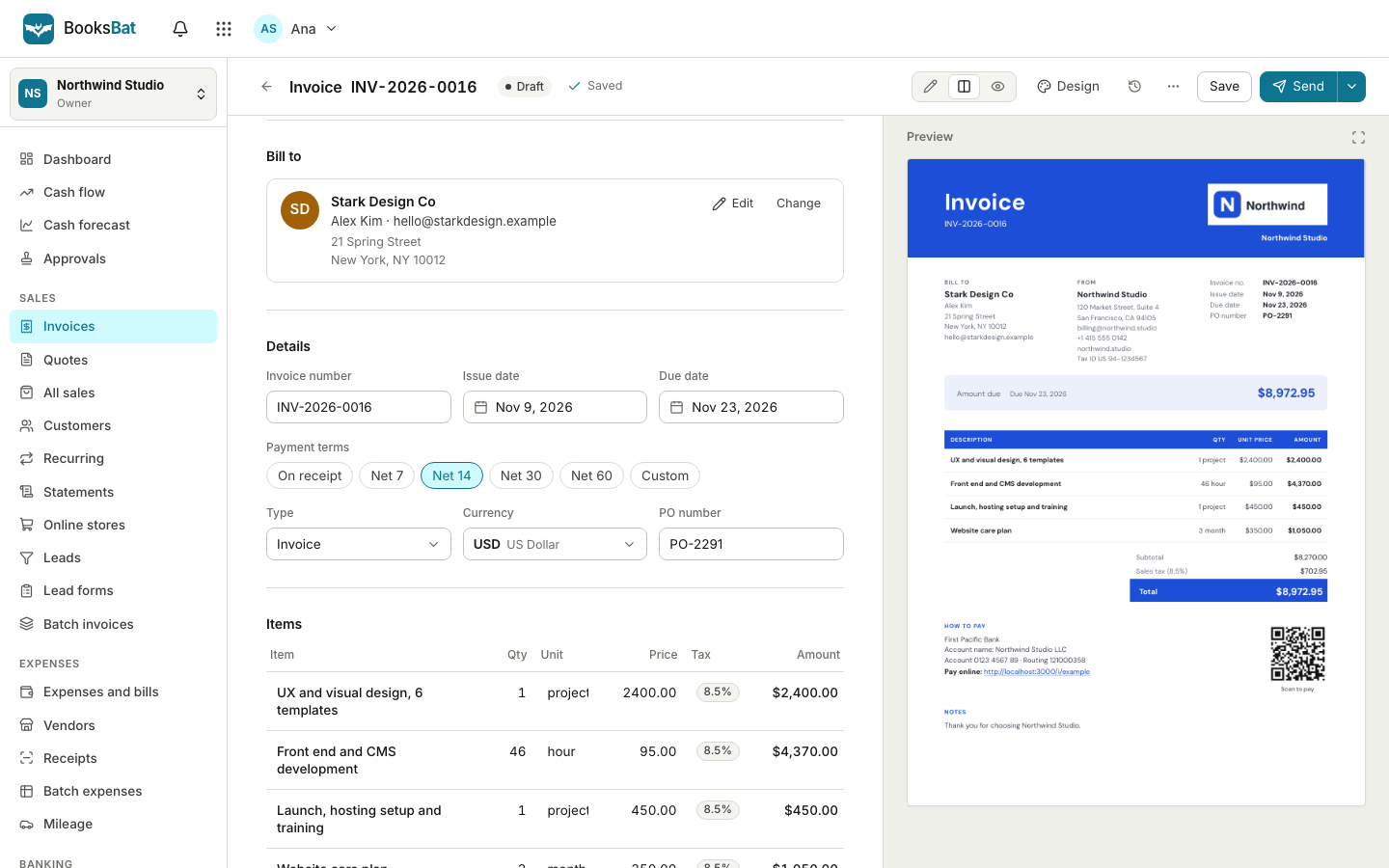 Online invoicingCreate professional invoices in minutes, email them with the PDF attached and let clients view and pay on a mobile friendly page.Expenses and billsRecord expenses, checks and supplier bills, pay them on time, track vendors and purchase orders, and keep every receipt attached.Financial reportsProfit and loss, balance sheet, cash flow, trial balance, general ledger, aging and more, on a cash or accrual basis.Team and accountant accessInvite your team and your accountant with the right role, run several companies from one login and see every change in the audit log.
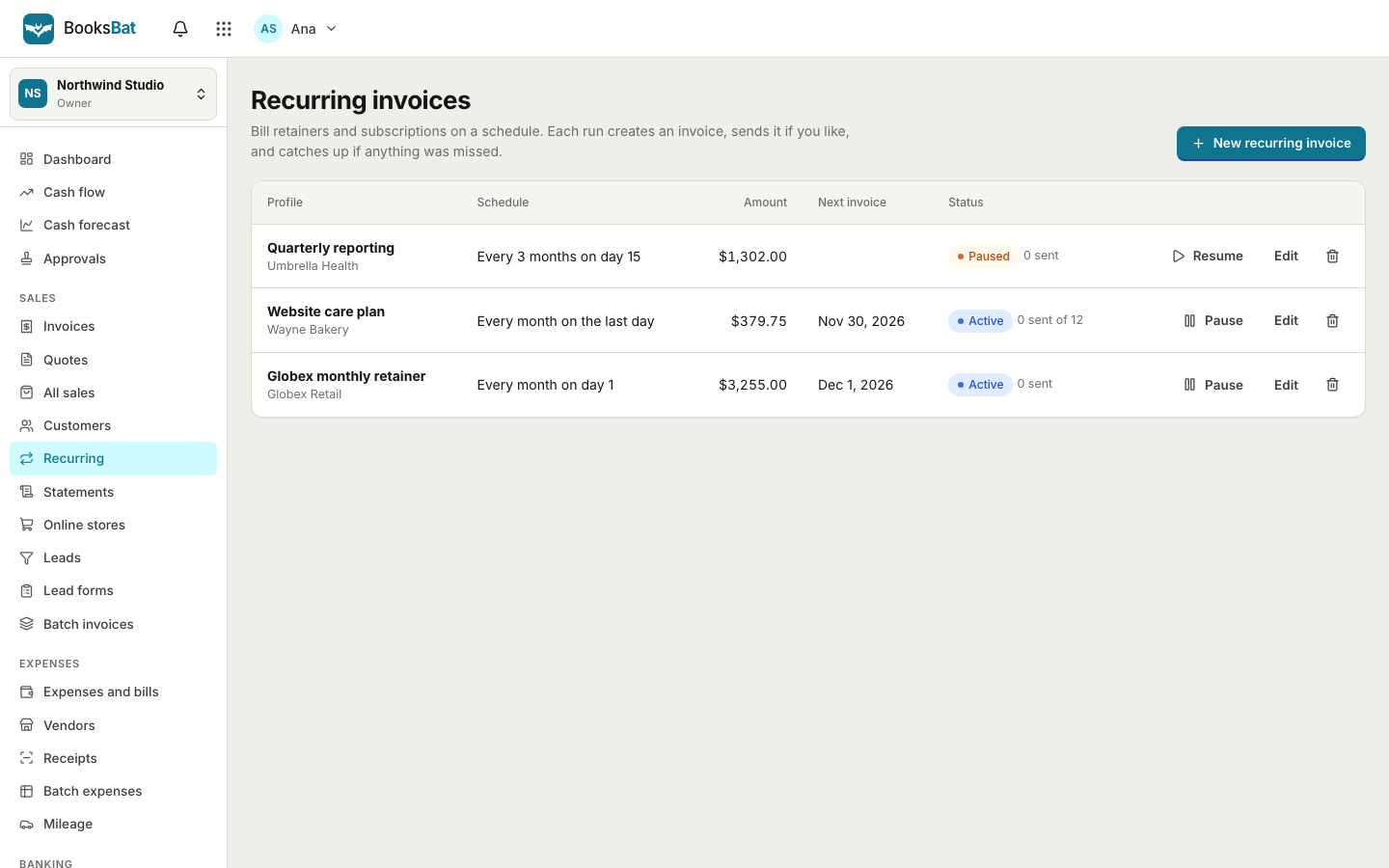 Recurring invoicesBill retainers and regular work on a schedule: weekly, every 2 weeks, monthly, quarterly or yearly, sent automatically or saved as drafts.
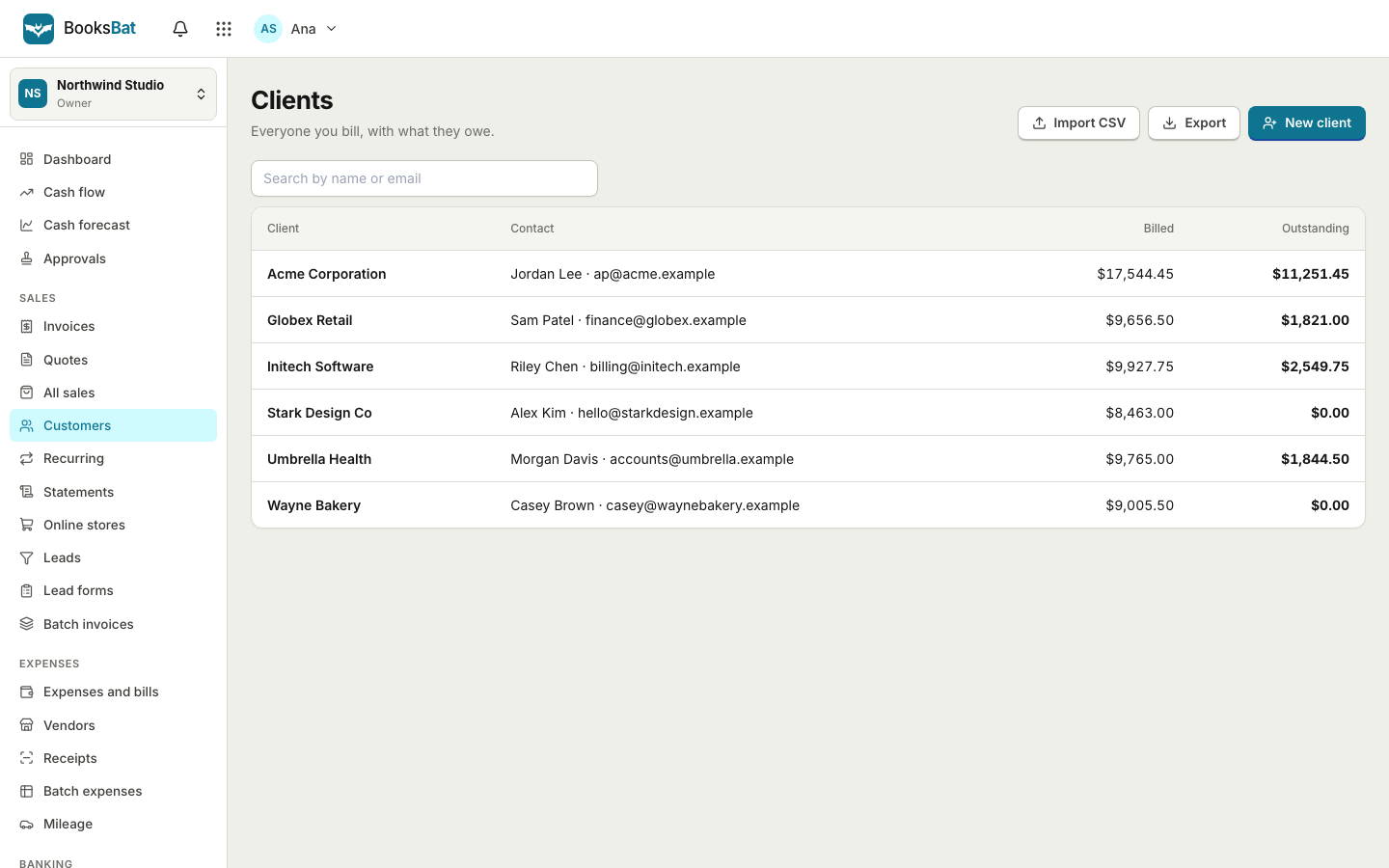 Clients and catalogSave clients, products and services once, import and export clients as CSV, and set up your business profile for every invoice.
Stop losing billable hours
Create a free account and upgrade to Business when you are ready to track time and projects. No credit card to start.